


Nano Banana 2.1
- Best for
- Everyday edits that must keep faces, products and text intact
- Input images
- 14
- Credits
- From 9 per image
Upload a photo, describe the change, and img2img turns it into a new image while keeping what matters. Choose Nano Banana 2.1, Seedream 5.5, Qwen Image 3.0, GPT Image 2.5, or classic img2img with a strength slider.

Img2img explained
Img2img, short for image to image, is AI image generation that starts from a picture you already have. You upload an input image and write a prompt, and the model makes a new image that keeps what you want, such as the pose, the layout or the product, and changes the rest. Text to image starts from a blank canvas; img2img starts from your photo, sketch or render.
A photo, a sketch, a product shot or an earlier AI result. It sets the composition, the colors and the subject.
Say what should change and what should stay. A good img2img prompt names both, for example: make it a rainy night, keep the people and the street.
The image to image AI returns a 1K PNG. Edit it again, or run the same prompt on another model and compare.
Classic img2img, the way Stable Diffusion does it, adds noise to your image and redraws it from the prompt. The strength setting decides how much gets redrawn. Here the Classic img2img (Wan 2.2) model has the slider; the instruction models (Nano Banana, Seedream, Qwen and GPT Image) work out what to keep from your words instead.
| Strength | What happens | Good for |
|---|---|---|
| 0.1–0.3 | Light touch: colors, light and texture shift; the layout stays | Color grading, cleanup, subtle restyles |
| 0.4–0.6 | Balanced: subject and composition stay, details are redrawn | Photo to painting, sketch to render |
| 0.7–0.95 | Heavy repaint: only the rough layout survives | New styles and big scene changes |
| Img2img (image to image) | Txt2img (text to image) | |
|---|---|---|
| Starts from | Your image plus a prompt | A prompt only |
| Layout control | High: the composition comes from your input | Low: the model decides |
| Consistency | Keeps faces, products and brand details | Changes with every run |
| Best for | Edits, restyles, product photos, sketch to image | New ideas from scratch |
Pick a model
Every img2img model takes your image as input. Start with the default, then switch when a job needs a different strength. Credits are per 1K image.
Extra input images add a few credits on every model except Classic img2img (GPT Image 2.5 adds the most). The generator always shows the cost before you run it.
Image to image AI covers most photo jobs with one img2img workflow: upload, describe, compare. These are the ones people ask for most.
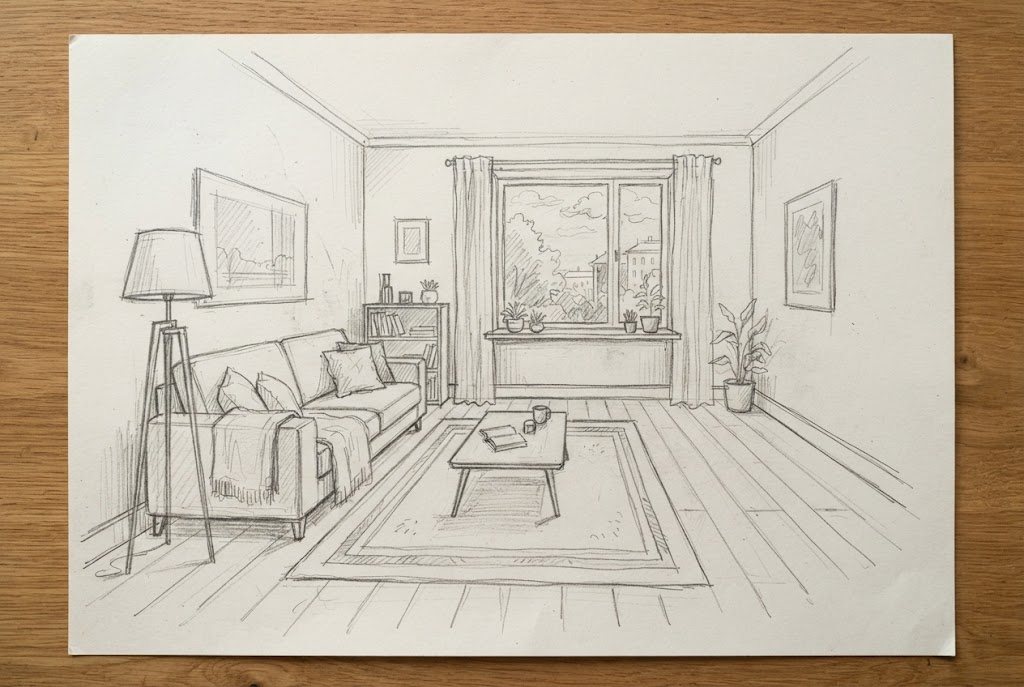
Sketch to image
Keep the layout, add the realism
Upload a pencil sketch, a floor plan doodle or a 3D blockout and describe the materials and light. Img2img follows your lines, so the furniture stays where you drew it.
Use this prompt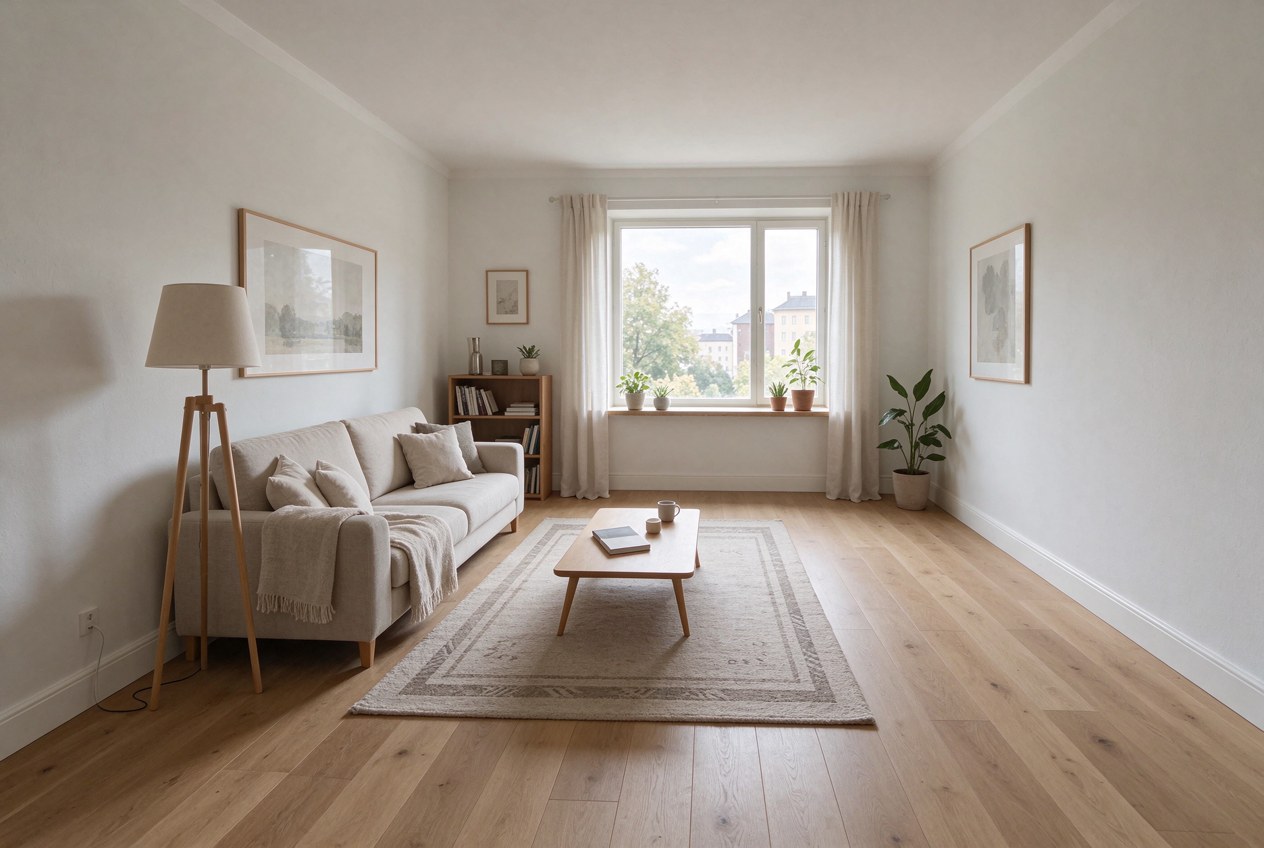
Product photos
One packshot, many lifestyle images
Start from a plain studio photo and ask for a bedside table, a kitchen counter or a beach at sunset. Tell the model to keep the label and the shape, then run the same img2img prompt on two models and compare.
Use this prompt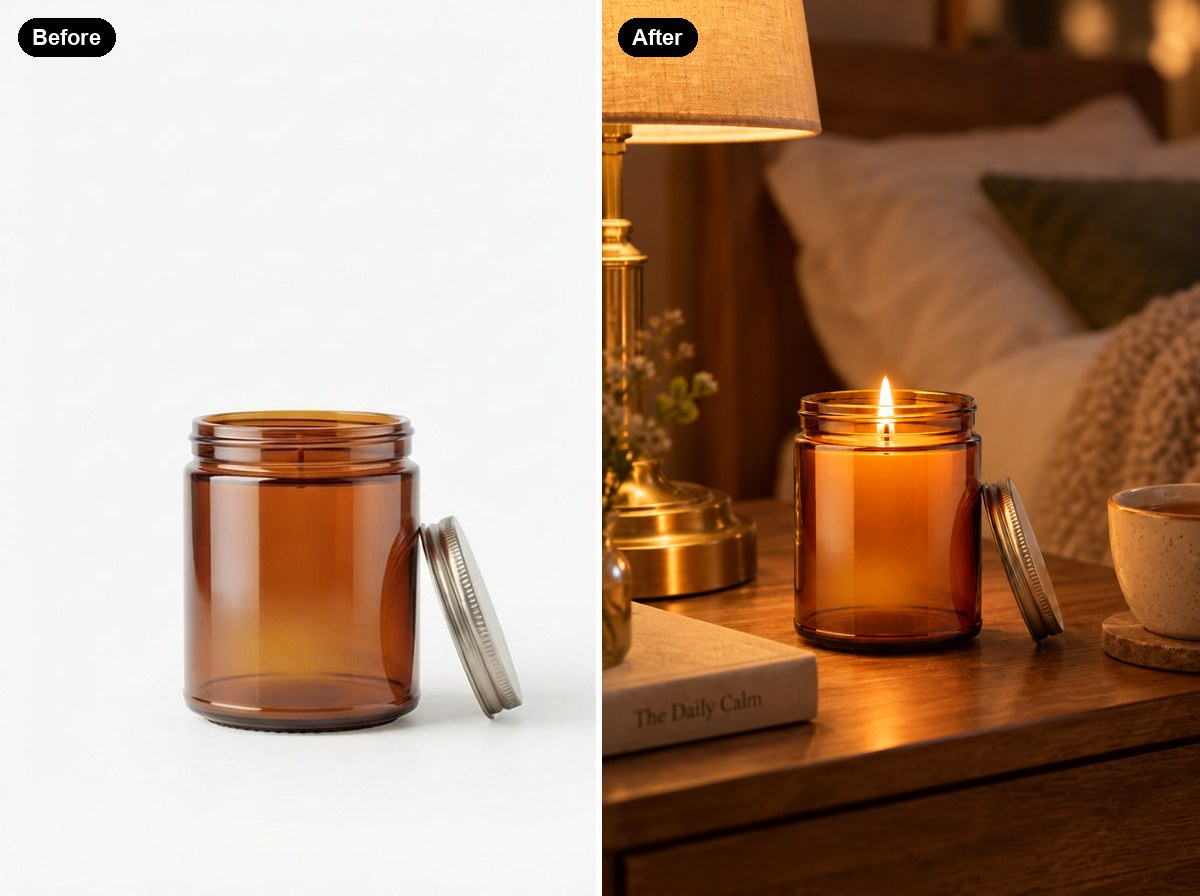
Relight and restyle
Same people, same street, new mood
Turn day into blue hour, summer into snow, or a photo into watercolor or anime. For a faithful result use an instruction model; for a looser reinterpretation raise the img2img strength.
Use this prompt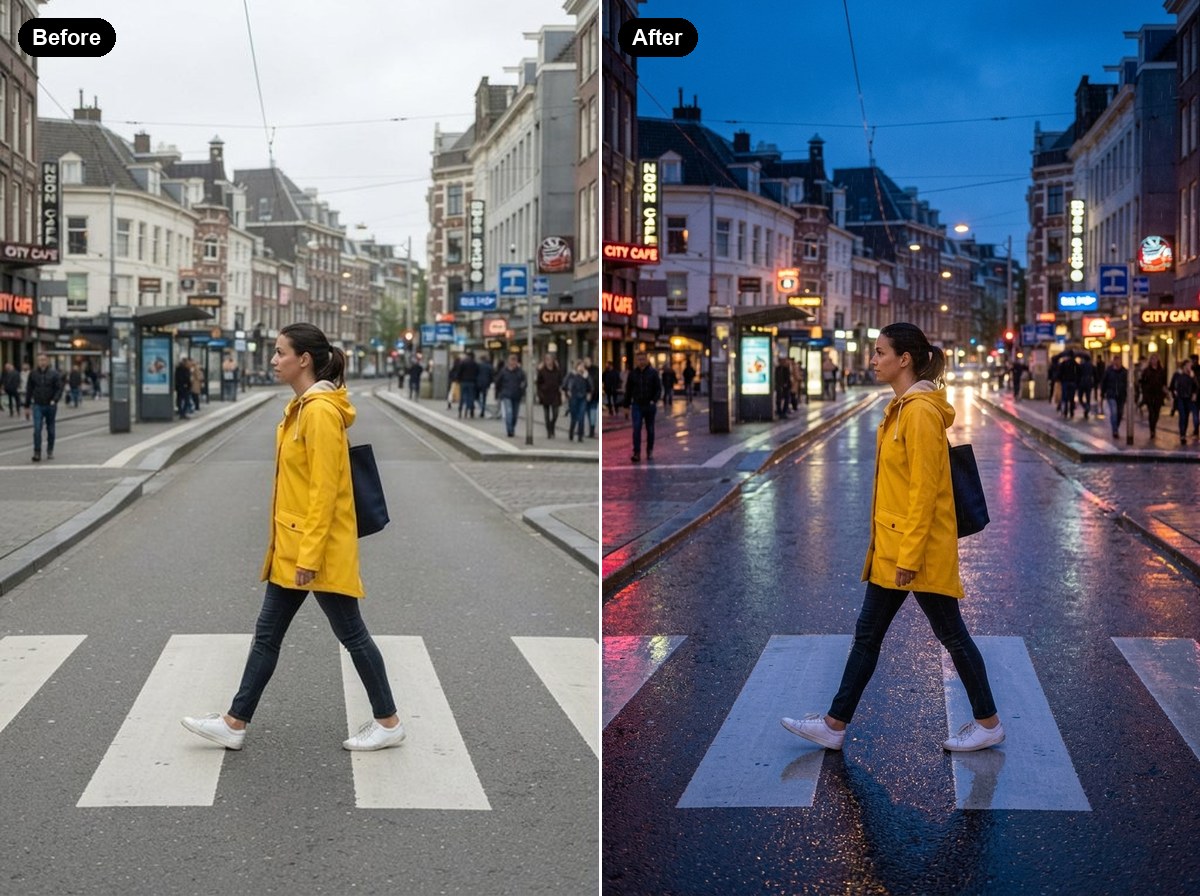
Multi-image
Product and scene in one prompt
Upload up to 14 images with Nano Banana 2.1 or GPT Image 2.5 and say how they fit together in one img2img prompt: put the candle from the first photo on the coffee table in the second, lit, in the same daylight.
Use this prompt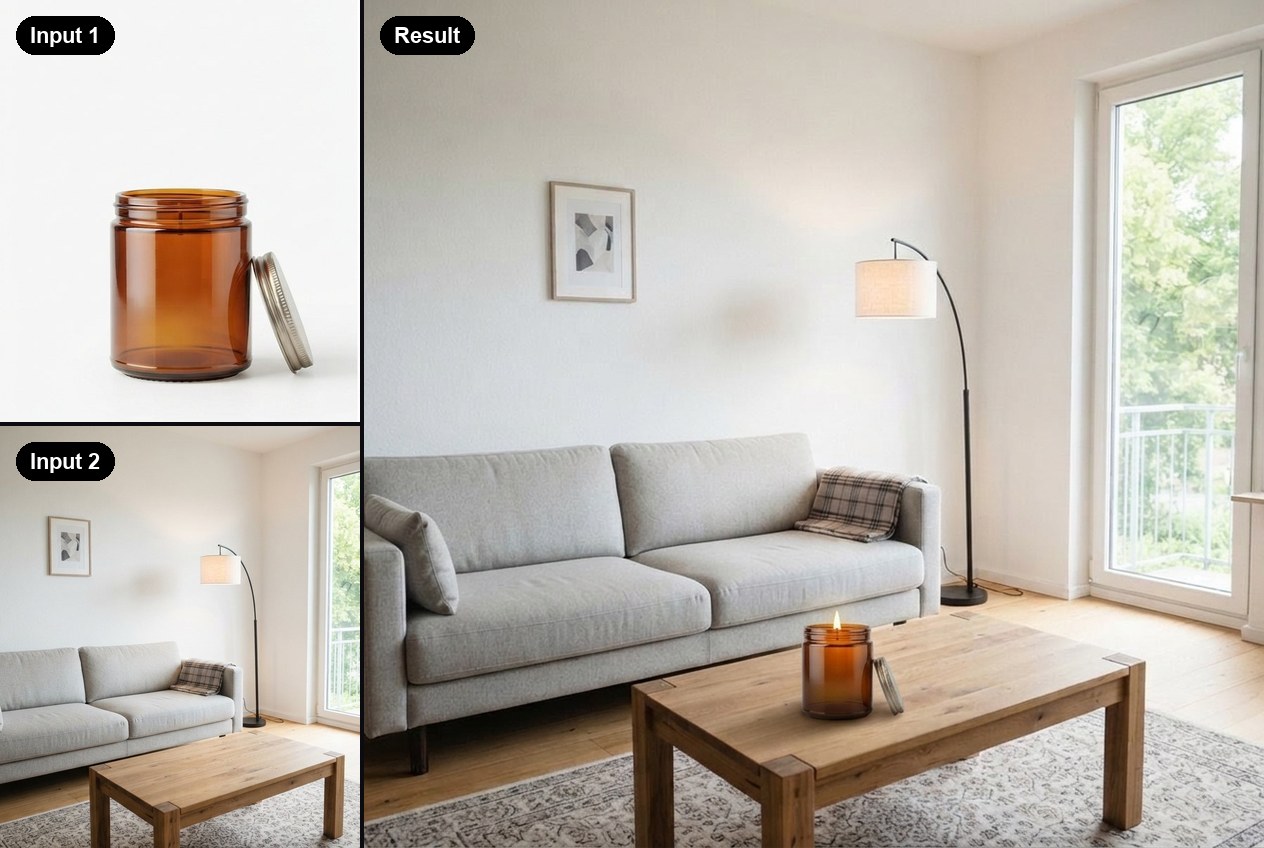
Precise editing
Change one thing. Keep the rest.
Upload a photo and say exactly what should change: a new sofa, a cleaner sky, a different wall color. The image to image AI changes that one thing and keeps the room, the light and the perspective, so img2img feels like editing, not starting over.
Try an edit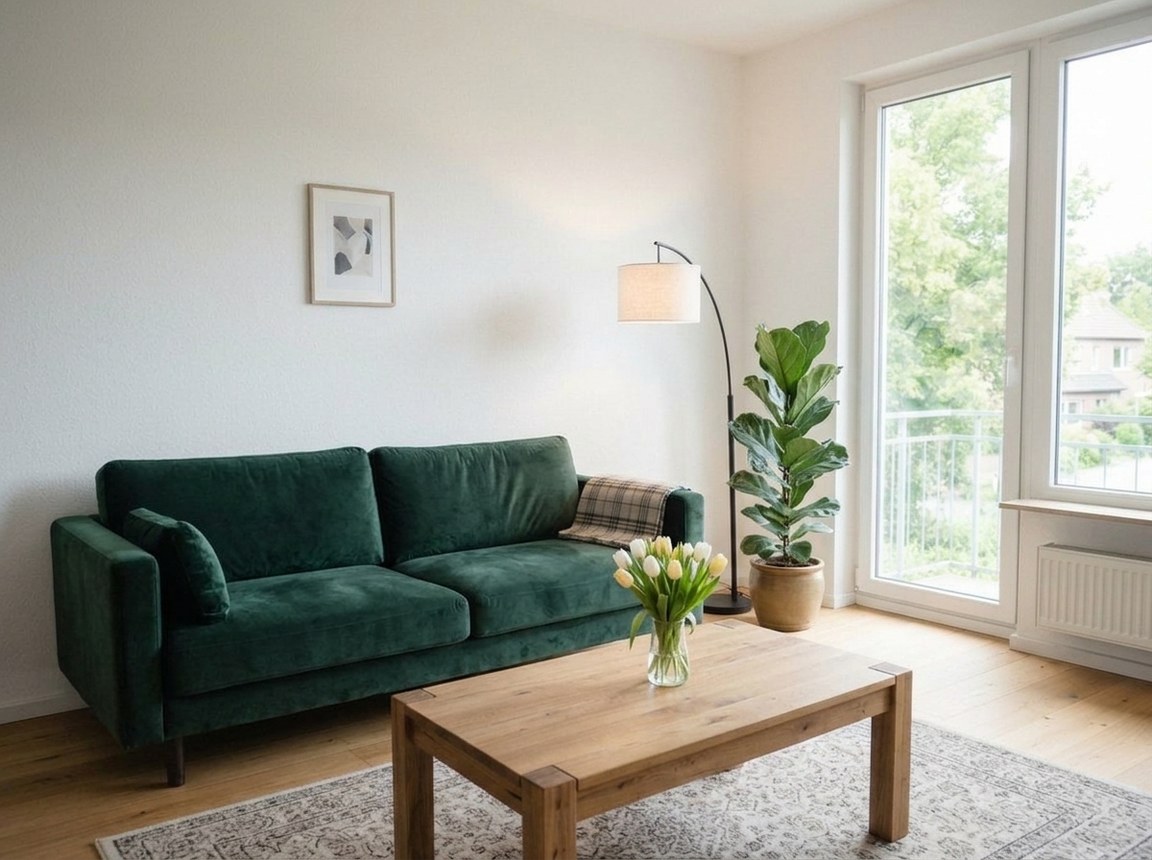
 OriginalEdited
Give a hex code or name a fabric, and only that object changes. Perspective, shadows and reflections stay consistent.
Upload a menu, sign or poster and ask for another language. The layout, type style and colors stay as they were.
Turn day into night, warm up a room or add a sunset glow while every object stays in place.
Simple steps
No install, no GPU and no Stable Diffusion setup. You use the image to image AI right in your browser.
Choose the plan that matches how often you generate with Img2Img.
Answers about image to image AI, strength settings, models, pricing and how this site works.
Img2img, or image to image, is AI generation that uses an existing image as the starting point. You give it an input image and a prompt, and it returns a new image that keeps the composition, subject or style you want and changes the rest.
Upload a picture to the generator above, write what should change, pick a model and press Edit Image. You do not need Stable Diffusion, ComfyUI or a GPU; the image to image AI models run on our servers.
New accounts get 9 free credits, enough for 1 image with the default model, with no credit card. Failed runs are refunded automatically. Credit packs and monthly plans add more images, private results and no watermark.
It sets how far the result can move away from your image. Around 0.2 keeps almost everything, around 0.5 keeps the composition but redraws the details, and 0.8 or higher keeps only a rough layout. Here it is the Strength slider on Classic img2img (Wan 2.2).
Start with Nano Banana 2.1 for edits that must keep faces, products and text. Use Seedream 5.5 for cheaper restyles, Qwen Image 3.0 for long instructions and text inside images, GPT Image 2.5 for combining several images, and Classic img2img when you want a strength slider. The default costs 9 credits per image.
Txt2img (text to image) starts from a prompt only. Img2img starts from your image plus a prompt, so you control the layout and the subject and the model fills in the change.
Yes, img2img works with several input images. Nano Banana 2.1 and GPT Image 2.5 take up to 14, Seedream 5.5 up to five and Qwen Image 3.0 up to three. Classic img2img takes one.
Upload PNG, JPG or WEBP files up to 10 MB each for img2img. Results are 1K PNG images, either in the shape of your input (Auto) or in one of ten aspect ratios from 21:9 to 9:16.
No. img2img.pro is an independent web tool. It runs third-party models from Google, ByteDance, Alibaba, OpenAI and the Wan team through an API provider and is not affiliated with Stability AI or any of those companies.
Yes. Images you create with img2img here are yours to use in client work, ads, product listings and social posts, as long as you have the rights to the images you upload. Free images carry a small watermark from this site; paid plans remove it.
Upload a photo and describe the change. Img2img runs in your browser, and new accounts get free credits for the AI image to image generator with no card required.
AI image to image models
Credits per image
Free image on sign-up